
This article provides some tips on how to troubleshoot network connectivity to an Oracle Autonomous AI Database (ADB-S) instance with Oracle Database@Azure and Oracle Database@Google Cloud. Troubleshooting can sometimes be difficult, because ADB-S does not expose the operating system and is only reachable on the database ports.
Part 2 of this article series covers the connectivity in the opposite direction, e.g. from ADB-S to an NFS or key management system.
Architecture overview
For this article, we assume you are using the networking option Private endpoint access only with the ADB-S instance. This means the Autonomous AI Database is only reachable on a private endpoint (PE) within your VNet (Azure) or VPC (Google). Please see the architecture overview below.
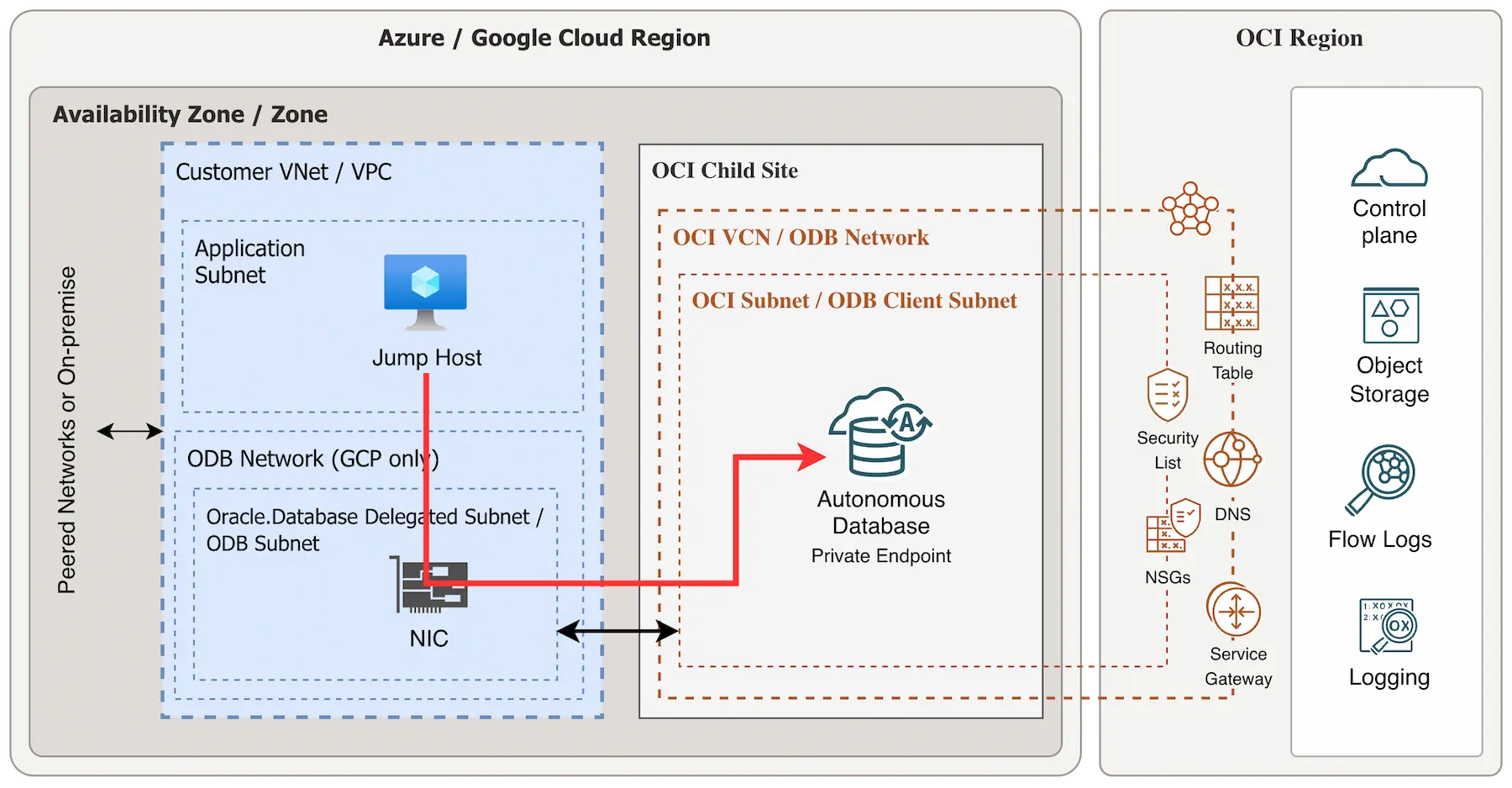
Tip for Azure: When configuring Oracle Database@Azure, leave some IP space for a secondary subnet on your database VNet. You can use this to deploy a jump host Azure VM, making debugging easier.
Debugging connections to Autonomous DB
Use case: Connecting an SQL client or application to your ADB-S instance.
- Routing & Testing: How to test connectivity?
- DNS: Can you resolve the DNS name?
- Firewall: Are there any firewall rules blocking the connection?
1. Routing & Testing connectivity
Tip for Azure: It is highly recommended to activate Advanced Networking on your Azure subscription before adding the Oracle.Database subnet delegation. Also check the supported network topologies.
Tip for Azure: If you are using UDRs with Oracle DB@Azure delegated subnet, see the Azure documentation about route specificity.
The Autonomous Database Private Endpoint (PE) has a unique IPv4 address that needs to be reachable. This private endpoint should automatically be routable from within your Google VPC or Azure VNet, where your database resides (without any additional configuration). Beyond that, native Azure VNet routing and Google VPC routing applies. If you are connecting from on-premise, it’s recommended to try testing connectivity from the same VNet / VPC first.
How to test connectivity to ADB-S
You can connect to an Autonomous AI database private endpoint using the Database Private URL (recommended) or using the Database Private IPv4 address directly. You can find both the Database Private URL and the Database Private IP address on the Autonomous Database instance details page on the Azure/GCP portal.
Note: The ADB-S private endpoint does not answer to ICMP (Ping).
Because the Autonomous Database private endpoint doesn’t answer to ICMP, it’s recommended to test connectivity directly against the database ports 1521 and 1522. I would recommend to either test using a database client directly (sqlplus, SQL Developer, etc.) or even better using this method with curl against port 1521:
curl -v telnet://fpncrhpq.adb.us-ashburn-1.oraclecloud.com:1521
If you can establish the connection successfully it should return Connected:
$ curl -v telnet://fpncrhpq.adb.us-ashburn-1.oraclecloud.com:1521
* Rebuilt URL to: telnet://fpncrhpq.adb.us-ashburn-1.oraclecloud.com:1521/
*   Trying 10.0.1.206...
* TCP_NODELAY set
* Connected to fpncrhpq.adb.us-ashburn-1.oraclecloud.com (10.0.1.206) port 1521 (#0)
If the curl command doesn’t return anything, it means that it cannot establish a connection (check for routing and firewall issues):
curl -v telnet://fpncrhpq.adb.us-ashburn-1.oraclecloud.com:1521
* Rebuilt URL to: telnet://fpncrhpq.adb.us-ashburn-1.oraclecloud.com:1521/
*   Trying 10.0.1.206...
* TCP_NODELAY set
If the curl command answers with Could not resolve host , it means the DNS name could not be resolved:
$ curl -v telnet://nodnsentry.adb.us-ashburn-1.oraclecloud.com:1521
* Rebuilt URL to: telnet://nodnsentry.adb.us-ashburn-1.oraclecloud.com:1521/
* Could not resolve host: nodnsentry.adb.us-ashburn-1.oraclecloud.com
* Closing connection 0
curl: (6) Could not resolve host: nodnsentry.adb.us-ashburn-1.oraclecloud.com
In this case, try to test with the IPv4 address of the ADB-S PE directly like this:
$ curl -v telnet://10.0.1.206:1521
2. DNS resolution
You can double check if the DNS name resolution works by running nslookup:
$ nslookup fpncrhpq.adb.us-ashburn-1.oraclecloud.com
Server:		168.63.129.16
Address:	168.63.129.16#53

Non-authoritative answer:
Name:	fpncrhpq.adb.us-ashburn-1.oraclecloud.com
Address: 10.0.1.206
By default, DNS resolution should work from the same VNet (Azure) or same VPC (Google) . If you are connecting from a different VNet or VPC, it’s normal that DNS resolution does not automatically work. Additional configuration is necessary, please refer to the documentation below.
Refer to these articles on DNS resolution with Oracle Database@Azure:
For DNS resolution with Oracle Database@Google Cloud, check the following articles:
- Oracle Database@Google Cloud DNS documentation
- Solution playbook: Configure DNS resolution in Oracle DB@Google Cloud
3. Firewalls and Network Security Groups
The most common issue is that a firewall rule is blocking the connection. Next to the native firewalls in Azure and Google, you need to allow connectivity on OCI.
OCI Network Security Groups (OCI NSGs)
Note: In OCI, connections are always dropped per default, unless there is an allow statement in place. Having no OCI NSG or Security List configured at all does not work, because all traffic would be disallowed.
Note: It’s recommended to use OCI NSGs only, and leave the OCI Security List section empty.
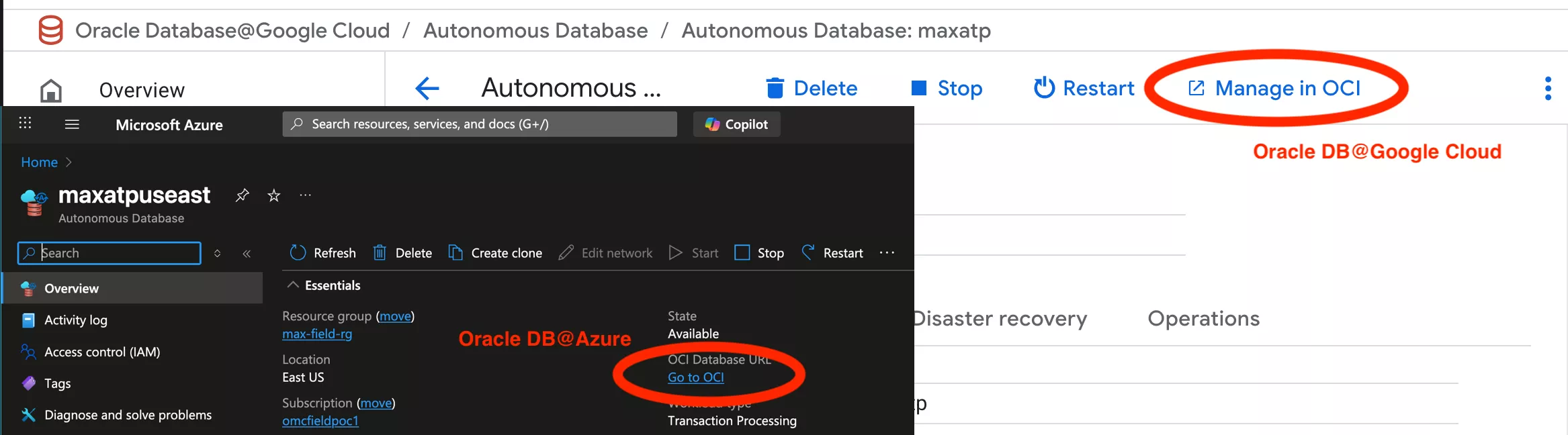
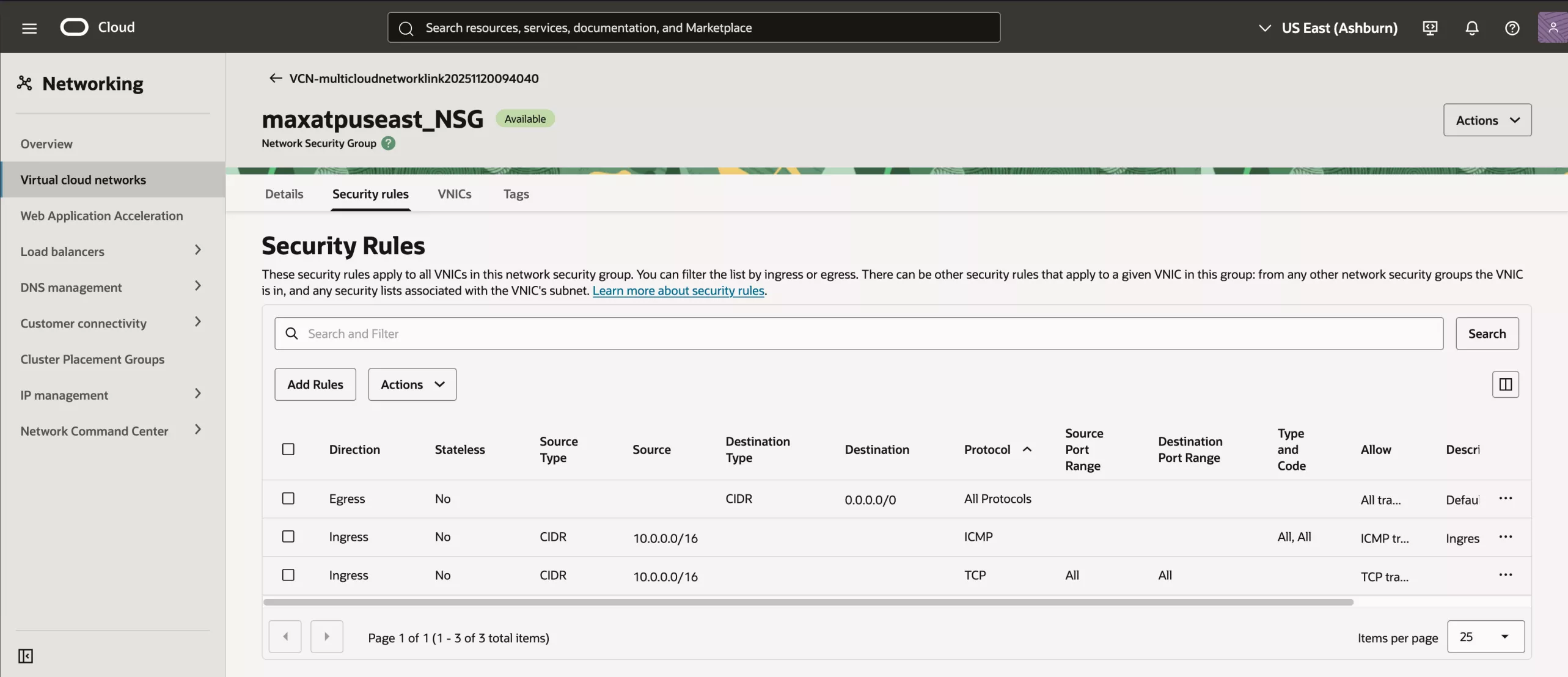
To check your OCI NSGs, navigate to your Autonomous AI database instance in Azure/Google and click Go to OCI (Azure) or Manage in OCI:
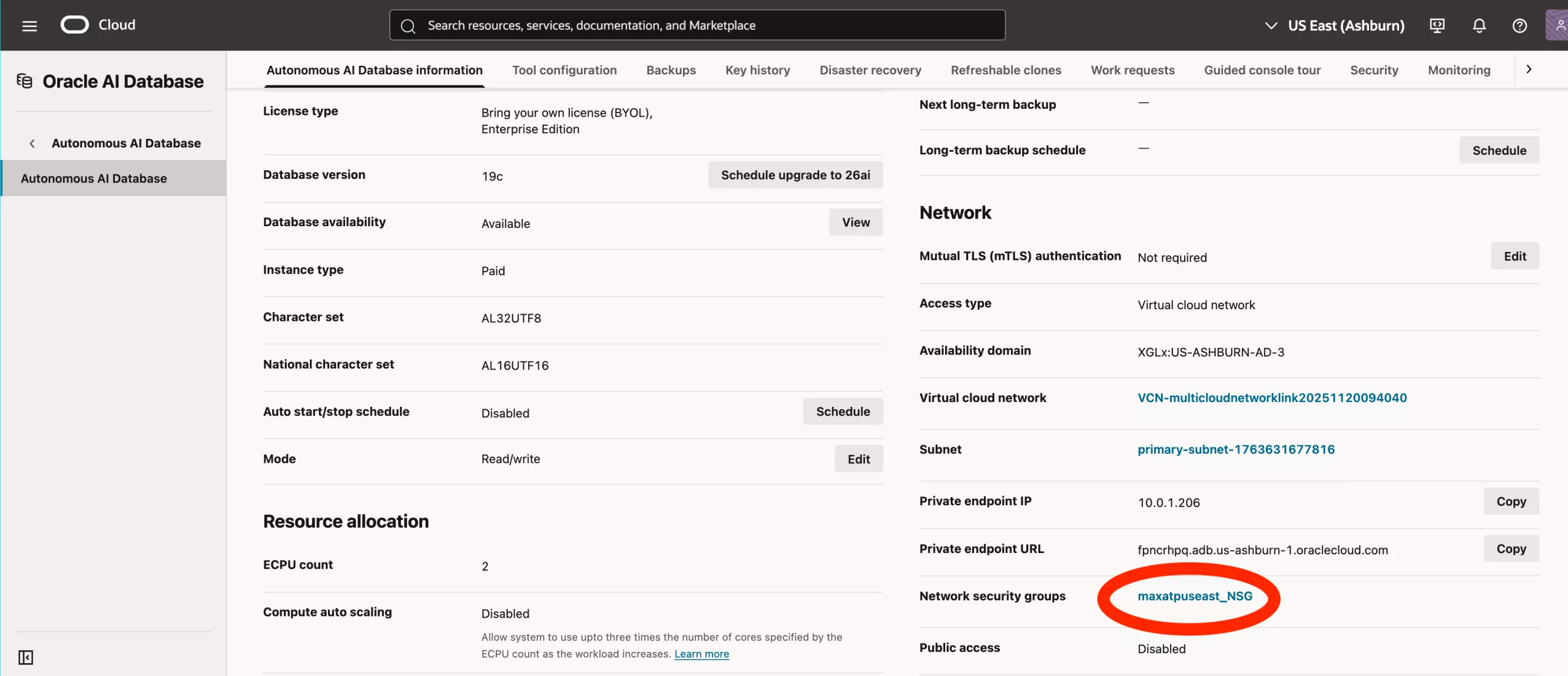
Scroll down to the networking section and select the Network Security Group.
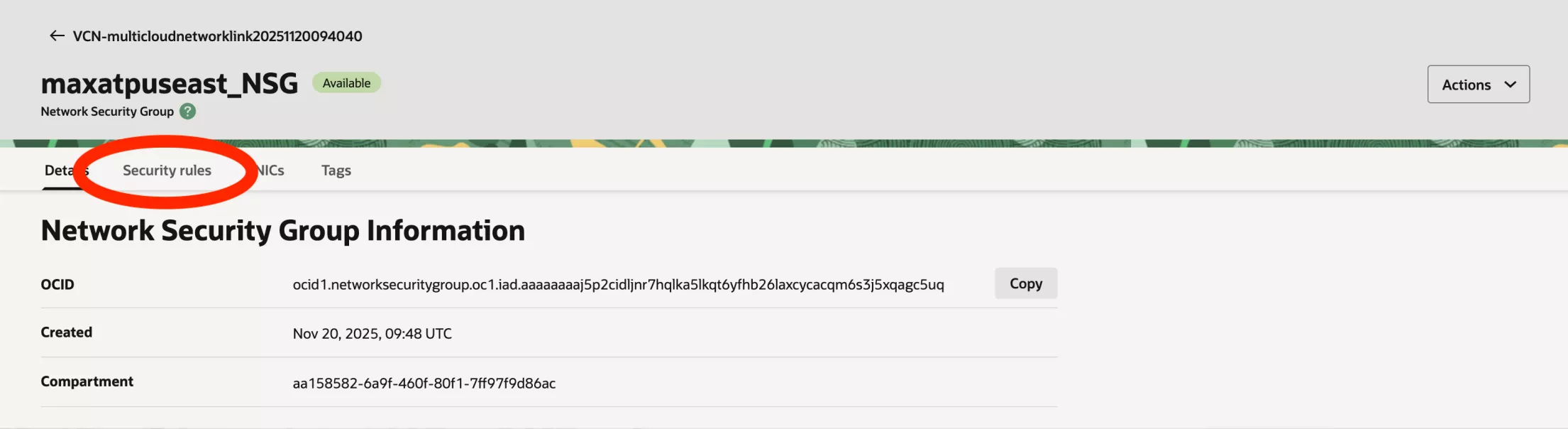
Go to the security rules section.
Add an appropriate Ingress rule:
- Create a stateful rule (Stateless=No),
- select your source CIDR range from on-prem or different VNet
- and select TCP traffic.
Note: With Oracle DB@Azure, TCP connectivity is allowed per default on the OCI NSG from the same VNet. With Oracle DB@Google Cloud, per default TCP connectivity is allowed from anywhere.
If you want to monitor the OCI firewall, you can do that using OCI Network Flow Logs. However, this requires an Oracle Cloud UCM subscription and is not available to OCI Multicloud tenancies by default.
Azure Network Security Groups
If you have Advanced Networking enabled, you can additionally configure Azure NSGs on the Oracle.Database Delegated Subnet. Note that OCI NSGs and Azure NSGs are ‘unrelated’ to each other and can both block traffic individually (think of “two doors”). The Azure NSG is optional, allowing traffic on OCI is mandatory, because otherwise traffic is blocked by default.
VPC Firewall rules
Similarly, for Oracle Database@Google Cloud, OCI NSGs always apply and control traffic to and from the database.
Additionally, VPC firewalls also apply, however only Egress connections from Google Compute Engine, Kubernetes, Cloud Run, etc.. Note that the VPC firewall rules will not apply at Ingress level to the database (OCI VNICs are not directly part of Google VPC).